Email Viewer: EML & MSG
Email Viewer: EML & MSG - How to use
What it does
The app opens .eml and .msg files attached to an item and shows each one as a readable email, right inside the item. You do not need to download the file. With Summarize with AI, it also lists the requests in the email, and you can create them as subitems of the item.
Before you start
- You need an item with at least one
.emlor.msgfile, either in a Files column or in the attachments of an update. - When you add the app, you approve its requested permissions: reading your account ID for Connect monday, reading boards, files and updates, creating subitems and setting their due dates, and adding updates to the subitems it creates.
- To create subitems, you need permission to add subitems to the item. Viewers can read emails only.
Add Email Viewer and open an email
- Add Email Viewer: EML & MSG to your monday.com account and approve its requested permissions.
- Open an item and add Email Viewer as an Item View.
- Attach an email to the item. Add .eml or .msg files to a Files column or to an update of this item.
- Open Email Viewer and select a file in the list. The email opens here, without a download.
- Read the attachments. Attachments are listed with their sizes. Attached emails open like any other email.
Summarize and create subitems
- In the email card, select Summarize with AI. The first time, read the data notice and select Continue only if you consent. Nothing is sent before that. The notice says that the email's subject, sender, recipients, date and text go to OpenAI (GPT-6 Luna) through the Email Viewer server hosted on monday code. Attachments are not sent. OpenAI processes it under its API data policies. Email Viewer and its server don't store the email or the summary; while subitems are being created, the chosen requests, with their names, due dates and quotes, are kept in the app's storage on your monday account until creation finishes or is discarded. Other users of your monday account who open this email in this item can see it.
- If the app shows "Connect monday to continue with AI.", select Connect monday, then select the Connect monday link that appears. It opens the monday authorization page in a new tab: follow the authorization steps there. When the new tab shows "Connection complete. Return to Email Viewer and try again.", return to Email Viewer and select Try again, which summarizes this email with AI. You can also connect in advance: select the Connect monday button next to Summarize with AI and follow the same steps. In that case the last step, Try again, also summarizes this email with AI; if you haven't consented yet, the data notice from step 1 comes first. Read the Privacy Policy at acty.dev/apps/email-viewer/privacy/ for details. Connect lets Email Viewer check whether AI is available. It does not send email content, start AI, or provide a subscription or trial. You need a suitable subscription to use AI.
- If the app shows "Choose a plan to continue with AI.", select Choose a plan. When the app says "Plan selection was opened. Choose a plan there, then try again.", choose a plan there and select Try again, which summarizes this email with AI. If plan selection isn't available, the app says so and shows Try again.
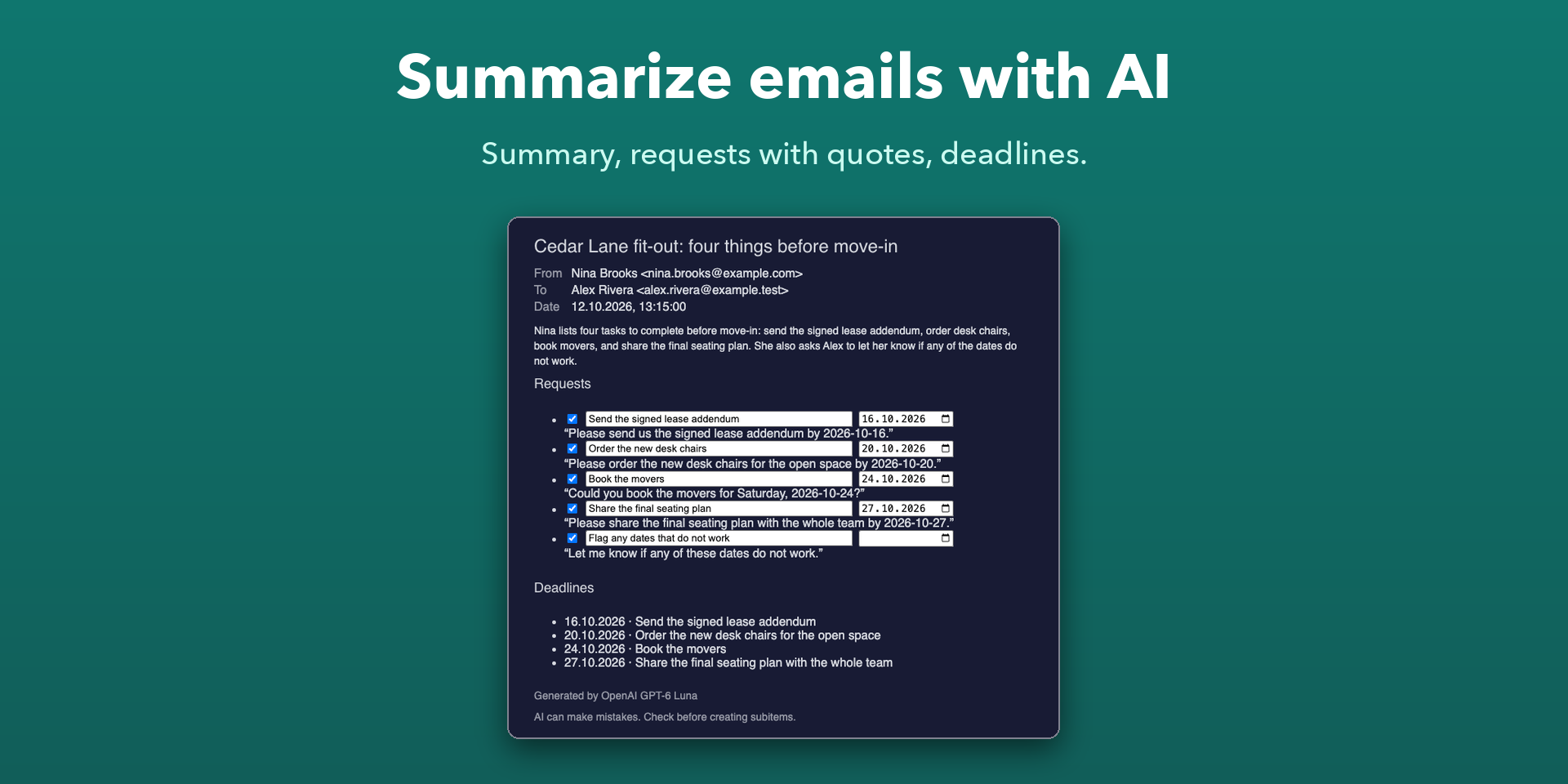
- Read the summary, the requests with their quotes, and the deadlines. A label under the result names the model: Generated by OpenAI GPT-6 Luna. AI can make mistakes. Check before creating subitems.
- Check the requests you want, edit their names and due dates, and select Create subitems. The button shows how many will be created.
- If the item has no subitems yet, the app warns that the first subitem can clear some values on this item when the board shows subitem summaries. Select Continue to go on.
- If a request has the same quote as a subitem already created from this email, the app stops before creating anything and shows: "Some requests have the same quote as subitems already created from this email, so they may be the same tasks. Select Continue to create them anyway." Under such a request you see "Same quote as “<name>”." The same quote doesn't mean the task already exists, so check the named subitems. Select Continue to create the checked requests anyway, or Cancel to go back. Your checkboxes don't change by themselves, and the requests can't be edited while the warning is shown.
- When it finishes, the app shows how many subitems it created and how many requests it skipped as already created.
- If creation stops, open the email again, even after reloading the page: the app shows the saved requests. Select Try again to finish them or Discard to delete the saved record. Subitems already created stay on the board. If the app says it got no confirmation from monday that a subitem was created, it won't change or create a subitem for that request and offers Discard only: check the item's subitems, select Discard and create the missing requests again. If the app says it created a subitem but can't confirm that its due date is set, Try again tries once more and can stop again while board information is unavailable. Continue without setting the due date asks you to confirm, then finishes the request with the same subitem, doesn't change its due date on the board and adds the missing update with the requested date marked "Date not verified by Email Viewer" (a short update with the mark if that update is already there without it). Discard deletes only the saved record: the subitem stays, and the next run may skip that request by its name without adding the due date and the update.
Good to know
- AI runs only when you select Summarize with AI, Summarize again or Try again. When an email is summarized, its attachments are not sent to AI. An attached email that you open is summarized on its own, and only when you select Summarize with AI, Summarize again or Try again in it.
- The app and its server don't store emails or AI summaries. While subitems are being created, the requests you chose, with their names, due dates and quotes, are kept in the app's storage on your monday account until creation finishes or is discarded. A record nobody finishes or discards has no expiry date. Other users of your account who open this email in this item can see it.
- Creating subitems again skips a request only when a subitem of this item already has the same name, ignoring case and extra spaces, or has the request's Email Viewer key in an update. A matching quote never skips or unchecks a request: the app asks first (step 7), and one Continue applies to the whole creation, including Try again.
- The check is not complete. The app reads only the five latest updates of each subitem, so an older update is not found. If the AI quotes a different part of the email, there is no warning and the request can be created again. Emails with the same subject, sender and date count as one email. In rare cases two tabs or people creating from the same email at the same moment can still create a duplicate.
- Images and styles hosted on outside websites are not loaded.
- The view follows your light, dark or night theme.
Need help?
Write to info@acty.dev. Do not send confidential email files to support; describe the issue and the result you expected instead.