
To compare two BOMs (bills of materials) in Excel, match their lines on a cleaned key, such as the manufacturer part number (MPN). Then give each part number one status: removed, added, quantity changed, designators changed or unchanged. Designators need one extra step: expand ranges such as R1-R4 and sort the list before you compare it.
The sample: two revisions of one board
This guide builds one result twice: with XLOOKUP formulas, then with a Power Query full outer join. The sample below is illustrative and small enough to check by eye.
Rev A
| Designators | Qty | MPN | Description |
|---|---|---|---|
| R1-R4 | 4 | RC0402FR-0710KL | RES 10K 1% 0402 |
| R5 | 1 | RC0402FR-071KL | RES 1K 1% 0402 |
| C1, C2, C3 | 3 | GRM155R71C104KA88D | CAP 0.1UF 16V X7R 0402 |
| C4 | 1 | CL10A106KP8NNNC | CAP 10UF 10V X5R 0603 |
| U1 | 1 | STM32G431CBT6 | MCU 128KB FLASH LQFP48 |
| D1 | 1 | LTST-C191KRKT | LED RED 0603 |
Rev B
| Designators | Qty | MPN | Description |
|---|---|---|---|
| R1-R4, R6 | 5 | RC0402FR-0710KL | RES 10K 1% 0402 |
| C1, C2, C5 | 3 | GRM155R71C104KA88D | CAP 0.1UF 16V X7R 0402 |
| C4 | 1 | GRM188R61A106KE69D | CAP 10UF 10V X5R 0603 |
| U1 | 1 | STM32G431CBT6 | MCU 128KB FLASH LQFP48 |
| U2 | 1 | MCP1700T-3302E/TT | LDO 3.3V 250MA SOT-23 |
| D1 | 1 | LTST-C191KRKT | LED RED 0603 |
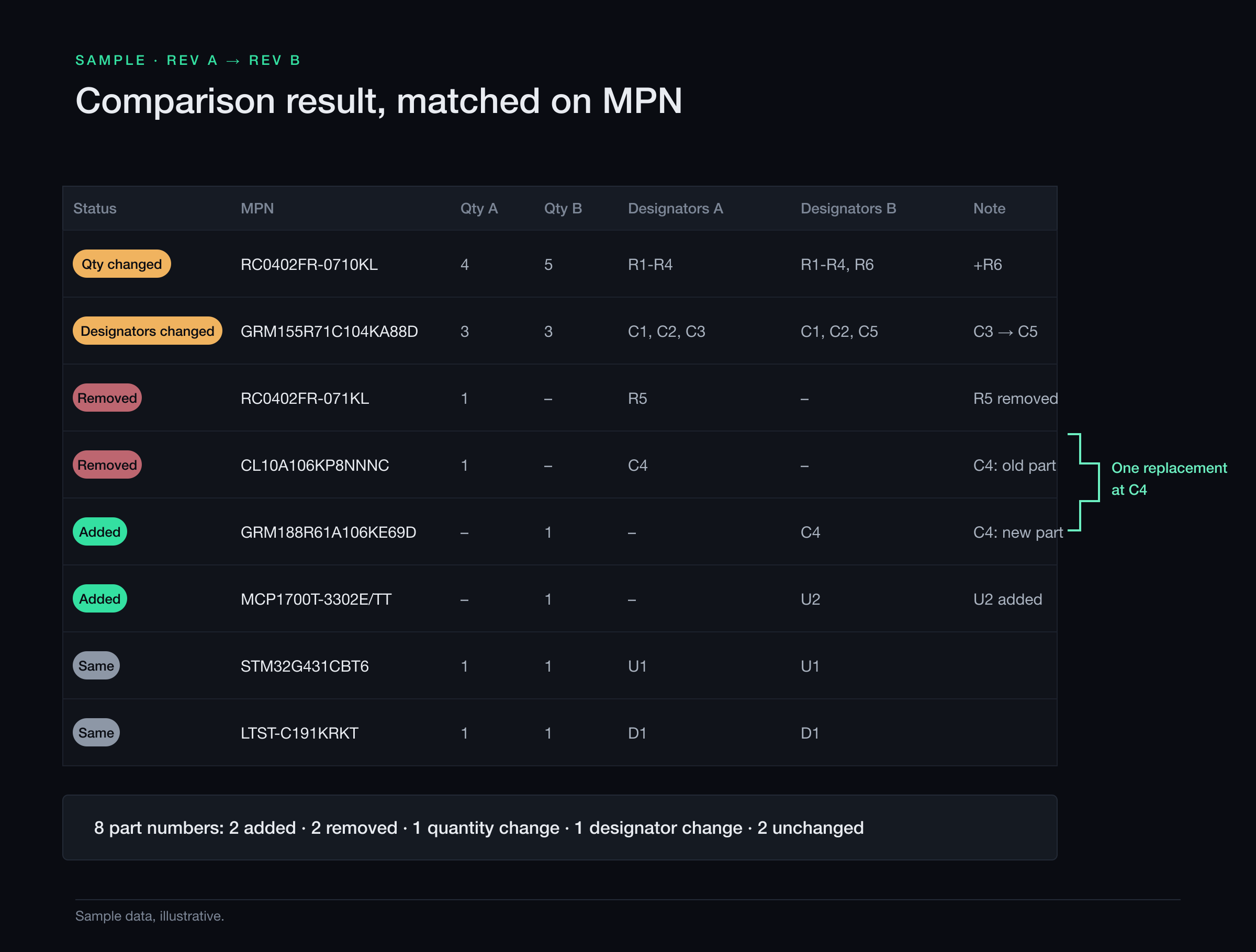
Rev B adds R6 to the 10K resistor line and moves one 0.1 µF capacitor from C3 to C5. It also drops R5, swaps the capacitor at C4 and adds a 3.3 V regulator at U2. Each part number gets the first status that applies, in this order: Removed, Added, Qty changed, Designators changed, Same. That is why RC0402FR-0710KL shows Qty changed, although its designators changed too.
The formulas below build every column in the figure except Note, which you type. The figure groups rows by status; your sheet lists them in the order the keys first appear.
Choose and clean the key
The key is the column you match the revisions on. Use your internal part number if every line has one, because it stays the same when purchasing switches to an approved alternate MPN. Otherwise use the MPN, as this guide does. Matching on designators answers a different question, what changed at each position, and comes later.
Put each revision in an Excel table (Insert > Table) and name the tables RevA and RevB in Table Design > Table Name. Then add a Key column to each table:
=UPPER(SUBSTITUTE(SUBSTITUTE([@MPN], UNICHAR(160), ""), " ", ""))
The inner SUBSTITUTE removes non-breaking spaces, which often arrive with text copied from web pages; TRIM does not remove them.1 The outer SUBSTITUTE removes ordinary spaces, and UPPER makes the case match. Leave dashes and slashes alone. They belong to many MPNs, such as MCP1700T-3302E/TT, and stripping them can merge two parts into one key.
Then add a Count column to catch duplicate keys:
=COUNTIF([Key], [@Key])
A value above 1 means one part sits on two lines. XLOOKUP returns only the first match,2 so merge such lines and add up their quantities before you compare.
Method 1: XLOOKUP formulas
Method 1 needs Excel for Microsoft 365, because Microsoft lists the REDUCE function for that version only.3 Start with a Refs column in each table: the reference designators in one standard form, with ranges expanded, items trimmed and the list sorted. The section on ranges below explains why the comparison needs it.
=IF([@Designators]="", "", LET(
  items, TRIM(TEXTSPLIT(UPPER([@Designators]), ",")),
  refs, REDUCE("", items, LAMBDA(acc, d, VSTACK(acc,
    IF(ISERR(FIND("-", d)), d, LET(
      a, TEXTBEFORE(d, "-"),
      b, TEXTAFTER(d, "-"),
      pa, MIN(FIND(SEQUENCE(10, 1, 0), a & "0123456789")),
      pb, MIN(FIND(SEQUENCE(10, 1, 0), b & "0123456789")),
      lo, --MID(a, pa, 9),
      hi, --MID(b, pb, 9),
      LEFT(a, pa - 1) & SEQUENCE(hi - lo + 1, 1, lo)))))),
  TEXTJOIN(", ", TRUE, SORT(refs))))
Paste it into the formula bar rather than the cell, so Excel keeps the lines in one formula. For R1-R4, R6 it returns R1, R2, R3, R4, R6.
Next, add a sheet named Compare. Type these headers in row 1: Key, Qty A, Qty B, Designators A, Designators B, Refs A, Refs B, Status. Then enter the formulas in row 2; each one spills down by itself.
A2  =UNIQUE(VSTACK(RevA[Key], RevB[Key]))
B2  =XLOOKUP(A2#, RevA[Key], RevA[Qty], "")
C2  =XLOOKUP(A2#, RevB[Key], RevB[Qty], "")
D2  =XLOOKUP(A2#, RevA[Key], RevA[Designators], "")
E2  =XLOOKUP(A2#, RevB[Key], RevB[Designators], "")
F2  =XLOOKUP(A2#, RevA[Key], RevA[Refs], "")
G2  =XLOOKUP(A2#, RevB[Key], RevB[Refs], "")
H2  =IF(C2#="", "Removed", IF(B2#="", "Added", IF(B2#<>C2#, "Qty changed",
      IF(F2#<>G2#, "Designators changed", "Same"))))
A2# stands for the whole spilled list of keys. XLOOKUP takes the value to find, the column to search, the column to return and the text to show when nothing matches.2 H2 tests in the figure’s order and compares Refs, not the designators as typed. Its last branch catches GRM155R71C104KA88D, where the quantity stays at 3 but C3 became C5.
If Excel rejects a formula, your settings may use semicolons between arguments. Replace the commas that separate arguments, not the commas inside quotes.
Method 2: Power Query full outer join
Power Query takes longer to set up but reruns with one click. A full outer join keeps all rows from both tables,4 so added and removed parts land in one result. Choose Data > Get Data > From Other Sources > Blank Query. Open Home > Advanced Editor, paste the query below, choose Done, name the query Compare, and choose Home > Close & Load.
let
    // "R1-R4, R6" -> "R1, R2, R3, R4, R6": ranges expanded, items trimmed and sorted
    Refs = (designators) =>
        let
            Items = if designators = null then {} else
                List.Select(List.Transform(Text.Split(Text.Upper(designators), ","), Text.Trim), each _ <> ""),
            Expand = (d) =>
                let
                    Ends = Text.Split(d, "-"),
                    Prefix = Text.Select(Ends{0}, {"A".."Z"}),
                    First = Number.From(Text.Select(Ends{0}, {"0".."9"})),
                    Last = Number.From(Text.Select(List.Last(Ends), {"0".."9"}))
                in
                    if List.Count(Ends) = 2
                    then List.Transform({First..Last}, each Prefix & Text.From(_))
                    else {d}
        in
            Text.Combine(List.Sort(List.Combine(List.Transform(Items, Expand))), ", "),
    Prepare = (name) =>
        let
            // keep only the source columns, so Key and Refs from Method 1 do not clash
            Source = Table.SelectColumns(Excel.CurrentWorkbook(){[Name = name]}[Content],
                {"Designators", "Qty", "MPN"}),
            Typed = Table.TransformColumnTypes(Source,
                {{"Designators", type text}, {"Qty", Int64.Type}, {"MPN", type text}}),
            WithKey = Table.AddColumn(Typed, "Key",
                each Text.Upper(Text.Remove([MPN], {" ", "#(00A0)"})), type text),
            WithRefs = Table.AddColumn(WithKey, "Refs", each Refs([Designators]), type text)
        in
            Table.SelectColumns(WithRefs, {"Key", "Qty", "Designators", "Refs"}),
    Merged = Table.NestedJoin(Prepare("RevA"), {"Key"}, Prepare("RevB"), {"Key"},
        "RevB", JoinKind.FullOuter),
    Expanded = Table.ExpandTableColumn(Merged, "RevB",
        {"Key", "Qty", "Designators", "Refs"},
        {"RevB.Key", "RevB.Qty", "RevB.Designators", "RevB.Refs"}),
    WithUnifiedMPN = Table.AddColumn(Expanded, "Unified MPN",
        each if [Key] = null then [RevB.Key] else [Key], type text),
    Compare = Table.AddColumn(WithUnifiedMPN, "Status", each
        if [RevB.Key] = null then "Removed"
        else if [Key] = null then "Added"
        else if [Qty] <> [RevB.Qty] then "Qty changed"
        else if [Refs] <> [RevB.Refs] then "Designators changed"
        else "Same", type text)
in
    Compare
Prepare loads a table, sets the column types and adds the same Key and Refs columns as Method 1. Text.Upper matters, because Power Query treats “Foo” and “foo” as different values.5 Both Key columns are typed as text, since join columns of different types may not merge correctly.6 Unified MPN uses RevB.Key when Key is null and otherwise uses Key, so every result row has a part identifier. The Status column deliberately tests the original two keys, as H2 does: testing the unified value would hide whether a row was added or removed. It also includes the Designators changed branch.
For the next revision, move Rev B into the RevA table, paste the new revision into RevB and choose Data > Refresh All. If you would rather not build the query, a web tool that compares two Excel tables lists the added, removed and changed rows between two versions.
Expand designator ranges before you compare designators
Designators are text, so a plain comparison checks them character by character. “R1-R4” and “R1, R2, R3, R4” name the same four positions, yet the text differs. Order matters too: “C2, C1” and “C1, C2” are different text. Compare designators as typed, and each such line shows a false Designators changed.
Refs removes those differences. It upper-cases the list, splits it at commas, trims each item and expands each range, then sorts and rejoins the result. The same positions give the same Refs, however each revision typed them.
Both the formula and the query read a range as a letter prefix with a number, a dash, and a second number. The prefix may repeat or not, so R1-R4 and R1-4 both work. A dash inside a designator, as in J1-1, or letters after the number, as in R10A-R12A, give a wrong list or an error. Scan Refs for such lines before you trust the status.
Pair a removed and an added line at the same designator
Keyed on MPN, a part swap shows up as two lines. At C4, CL10A106KP8NNNC is Removed and GRM188R61A106KE69D is Added. That suits purchasing, which stops buying one part and starts buying the other. The engineering change notice and the SMT (surface-mount technology) line need one line instead: C4, old MPN, new MPN.
Type Replaced by in I1 and this formula in I2:
I2 =IF(H2#="Removed", XLOOKUP(F2#, IF(H2#="Added", G2#), A2#, ""), "")
The inner IF keeps the Rev B Refs of Added rows only, so a Removed row can match nothing else. On the sample, I2# shows GRM188R61A106KE69D next to CL10A106KP8NNNC. R5 stays unpaired, because no new part takes its place. In Power Query, filter two references of the Compare query to Removed and to Added, then merge them on Refs and RevB.Refs.
This pairs lines whose designator lists match exactly. When a new part takes only some of an old part’s positions, compare single designators. In the two filtered queries, split Refs and RevB.Refs into rows with Split Column > By Delimiter, using ”, ” as the delimiter and Rows under Advanced options.7 Then merge the old and new rows on the single designator.
Check quantity against designator count and DNP lines
Refs also lets you check each revision on its own. Add two columns to each table:
Placed  =IF([@Refs]="", 0, LEN([@Refs]) - LEN(SUBSTITUTE([@Refs], ",", "")) + 1)
Check   =IF([@Qty]=[@Placed], "OK", "Check")
Placed counts the commas in Refs and adds one. On the sample every line passes: R1-R4, R6 gives 5 positions for a quantity of 5. A Check points to a wrong quantity or a missing or extra designator. Lines without designators, such as the bare board, show Check by design.
DNP (do not populate) lines need one rule in both revisions. Mark them in their own column, such as Fitted with Yes or No, and let Check skip them.
Check =IF([@Fitted]="No", "DNP", IF([@Qty]=[@Placed], "OK", "Check"))
Compare Fitted the way you compare Qty, with one more lookup pair and one more status branch. A part that moves to DNP is a real change. Kitting stops pulling it, and the placement program must skip its position.
Footnotes
-
Microsoft Support, “TRIM function”, accessed 2026. https://support.microsoft.com/en-gb/office/trim-function-410388fa-c5df-49c6-b16c-9e5630b479f9 ↩
-
Microsoft Support, “XLOOKUP function”, accessed 2026. https://support.microsoft.com/en-us/office/xlookup-function-b7fd680e-6d10-43e6-84f9-88eae8bf5929 ↩ ↩2
-
Microsoft Support, “REDUCE function”, accessed 2026. https://support.microsoft.com/en-us/office/reduce-function-42e39910-b345-45f3-84b8-0642b568b7cb ↩
-
Microsoft Learn, “Full outer join”, Power Query documentation, accessed 2026. https://learn.microsoft.com/en-us/power-query/merge-queries-full-outer ↩
-
Microsoft Learn, “Capitalization in Power Query M”, accessed 2026. https://learn.microsoft.com/en-us/powerquery-m/m-working-with-case ↩
-
Microsoft Learn, “Merge queries overview”, Power Query documentation, accessed 2026. https://learn.microsoft.com/en-us/power-query/merge-queries-overview ↩
-
Microsoft Learn, “Split columns by delimiter”, Power Query documentation, accessed 2026. https://learn.microsoft.com/en-us/power-query/split-columns-delimiter ↩