Jira Automation · Atlassian Marketplace app
Backlog Ranking for Jira Automation — user guide
What it does
The app adds two actions to Jira Automation:
- Rank issue at top of backlog puts the rule's current work item before the first work item in the backlog of the board you choose.
- Rank issue at bottom of backlog puts it after the last work item in that backlog.
Typical rules: new bugs with the highest priority go to the top of the backlog; work items moved to a "Blocked" status go to the bottom; a manual rule lets the team send the current work item to the top from the work item view.
Requirements
- Jira Cloud with boards and a board that has a backlog. Tested on a company-managed Scrum board; team-managed boards and Kanban backlogs have not been tested yet.
- A rule trigger that has a work item, such as "Work item created", "Work item transitioned" or "Manual trigger from work item". The action ranks that work item.
- An active subscription or trial of the app on your site.
- The user who connects the action (the action shows "Logged in to … as" that user) needs access to the board and its project, the Browse Projects permission and the Schedule Issues permission, which Jira requires to change rank. The app's messages call this user the rule actor.
Install
- A site admin installs the app from the Atlassian Marketplace and starts the free 30-day trial.
- The admin approves the app's access: read board configuration and backlog, read project and work item details, change the rank of work items.
Create a rule
- Open Automation in your project settings or in global administration and create a rule.
- Choose a trigger that has a work item, for example "Work item created", "Work item transitioned" or "Manual trigger from work item".
- Add an action and search for "Rank issue at top of backlog" or "Rank issue at bottom of backlog".
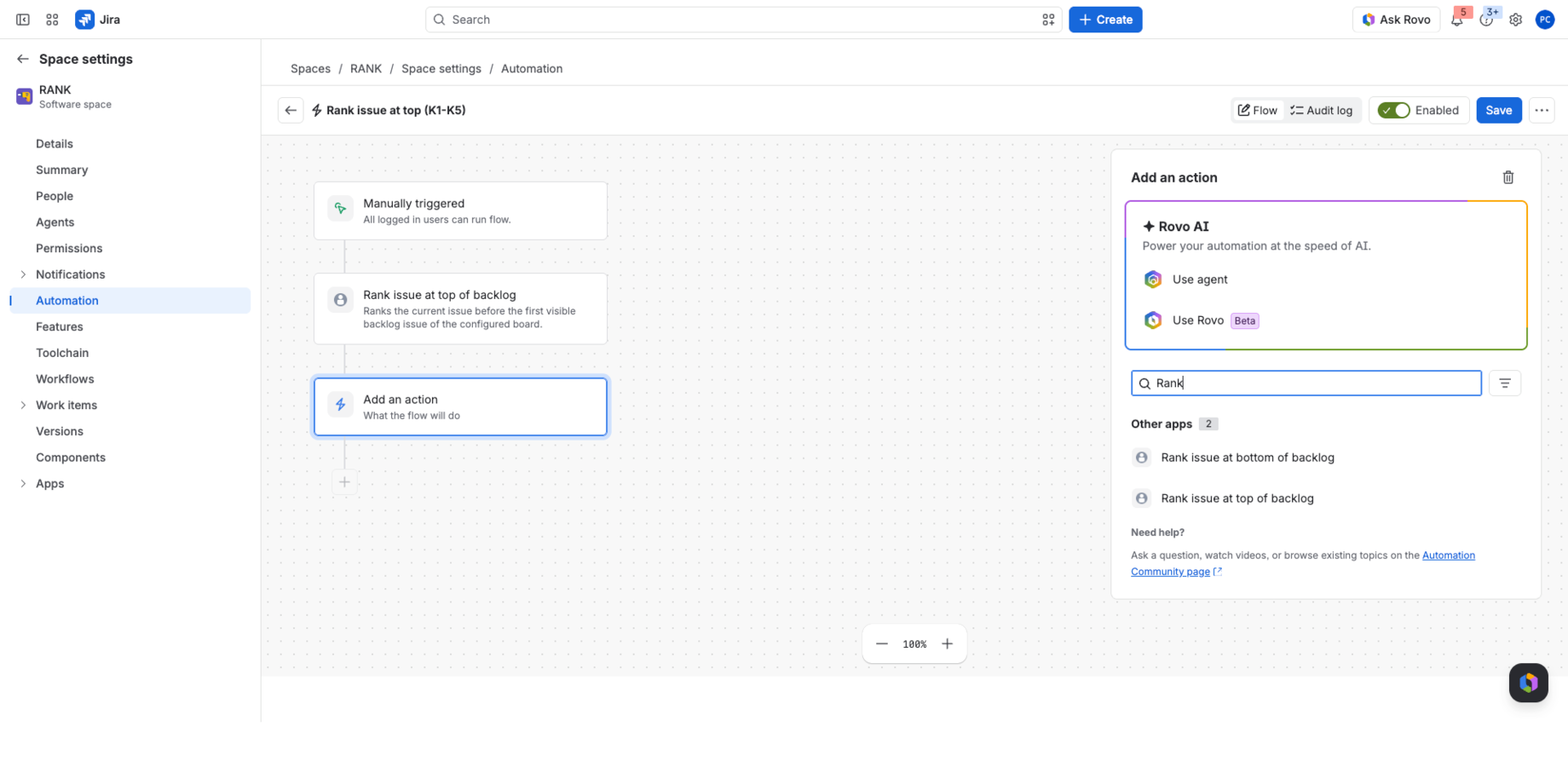
- Select Connect so the action can work in Jira on your behalf. The action runs with your Jira permissions.
-
Enter the Board ID: open the board and copy the number after
/boards/in the browser address, for example 178 in.../boards/178/backlog.
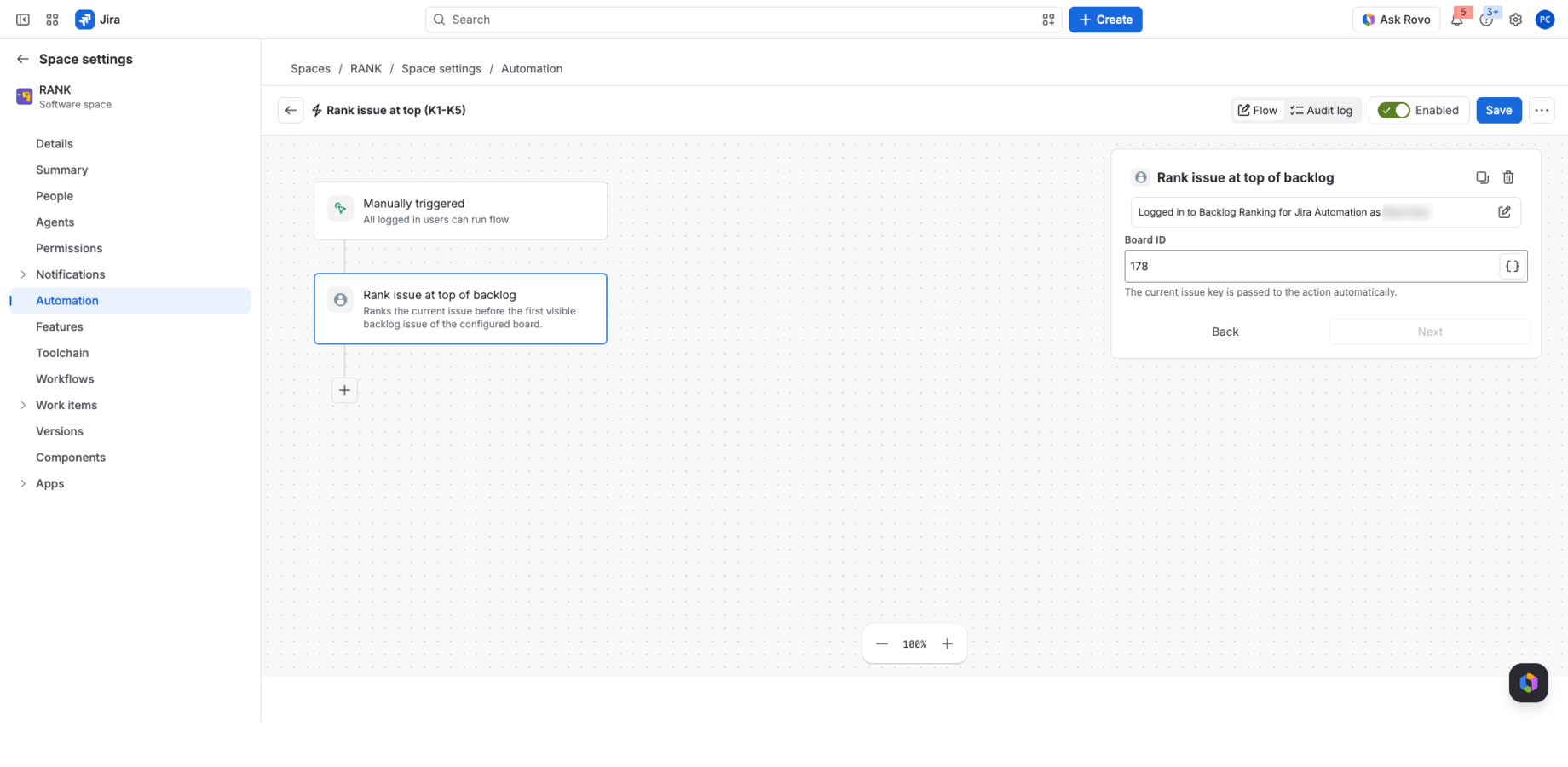
- Save the rule and turn it on.
The key of the current work item is passed to the action automatically.
What happens when the rule runs
- The action reads the board's rank settings.
- It checks that the work item is in the board backlog, not in a sprint.
- It finds the first or the last work item in the backlog.
- It ranks the work item before the first one or after the last one. If the work item is already there, nothing changes and the run succeeds.
- It reads the backlog again to confirm the result.
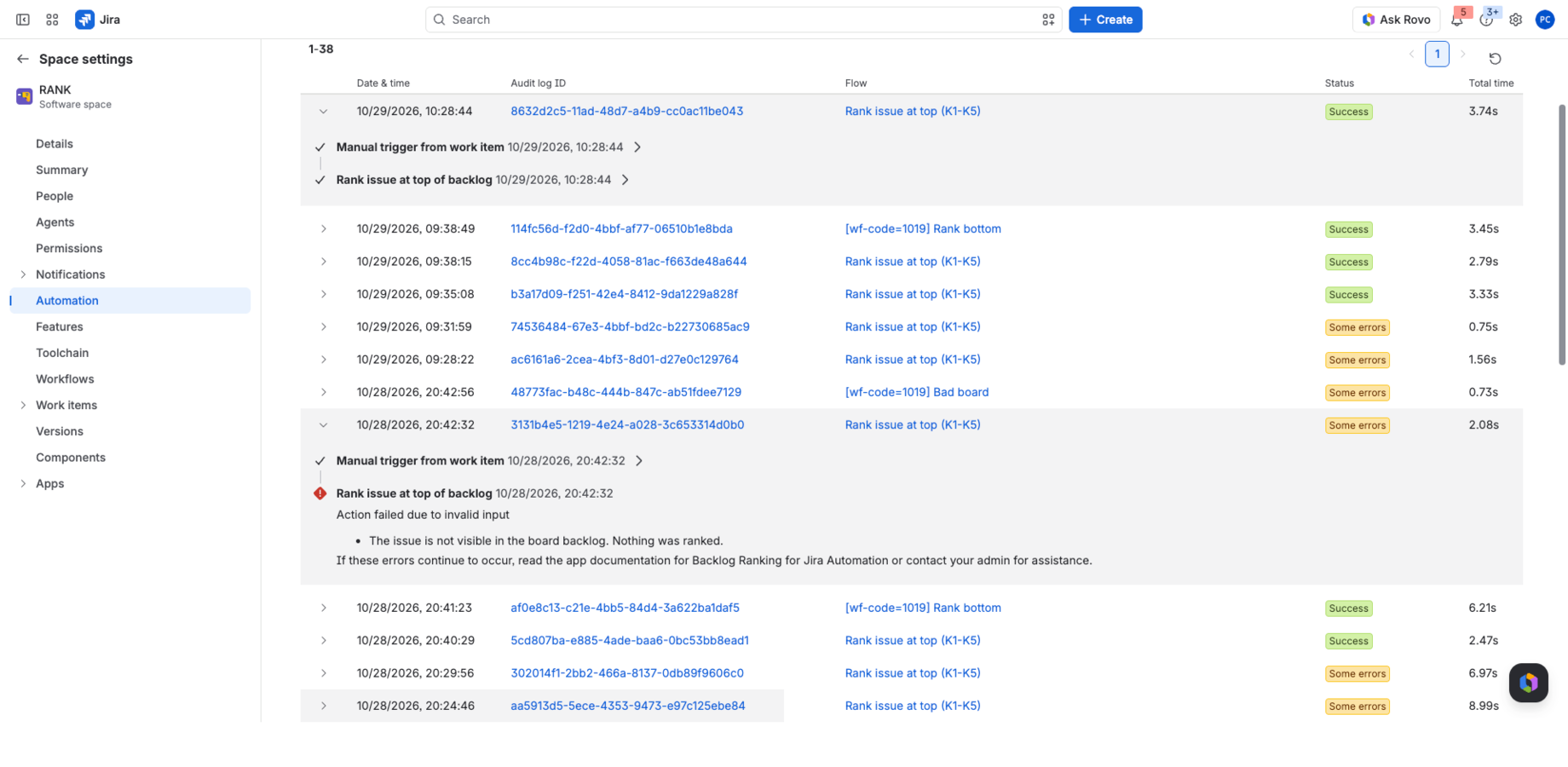
If a step fails, the rule stops and the audit log shows one of the messages below. Rate limits, gateway errors and timeouts are retried once before the action gives up.
Audit log messages
| Message | What to do |
|---|---|
| This app has no active license on this Jira site. Ask a Jira admin to start a trial or subscription, then run the rule again. | A site admin starts a trial or a subscription for the app. |
| The action needs a positive board ID and the current issue key. Check the action configuration. | Enter the Board ID in the action again and save the rule; also check that the rule's trigger has a work item. |
| The board configuration could not be read. Check the board ID and that the rule actor can access the board. | Check the Board ID and that the rule actor can open the board. |
| Jira did not return the board data (temporary error). Try again in a moment. | Run the rule again later. |
| The issue is not visible in the board backlog. Nothing was ranked. | The work item is in a sprint, on another board or outside the board filter. |
| The first backlog issue could not be determined. Nothing was ranked. | Check that the backlog is not empty and the board filter shows it. |
| The last backlog issue could not be determined. Nothing was ranked. | Same as above, for the bottom action. |
| Jira rejected the rank request. Check that the rule actor has the Schedule Issues permission. | Give the rule actor the Schedule Issues permission, or reconnect the rule as a user who has it. |
| The rank result was not confirmed. Verify the backlog order before retrying. | Open the backlog and check the order before you run the rule again. |
| The action is misconfigured or its result is unknown. | Save the action configuration again; contact support if it repeats. |
Good to know
- Each action works with one board. To rank on two boards, add two actions.
- The actions rank within the backlog only; work items in sprints are not moved.
- Each run counts toward your site's Jira Automation usage like any other action.
- The app stores no data from your site. See the Privacy Policy.
Support
Email [email protected]. Include the rule name, the time of the run and the audit log message. Please do not send confidential data. Support hours and response times are on the Support page.